
Samsung introduced an improved document scanning feature with the Galaxy S26. One UI 8.5's new document scanner makes it easier to capture, edit, save, and share documents. While there are many apps, including Google Drive and WhatsApp, to scan documents using the phone's camera, a built-in first-party app is almost always easier to use and has better integration.
The improved Document Scan feature is available directly within the stock Camera app on select Galaxy devices running One UI 8.5, but there is an even faster way to access it.
Add Document Scan shortcut to your Galaxy phone’s app launcher and home screen
To use the new Document Scan feature, you currently need a Galaxy S26 series device. More Galaxy S and Galaxy Z series phones released in recent years are expected to receive it with the stable One UI 8.5 update. Follow the steps below to enable and access it:
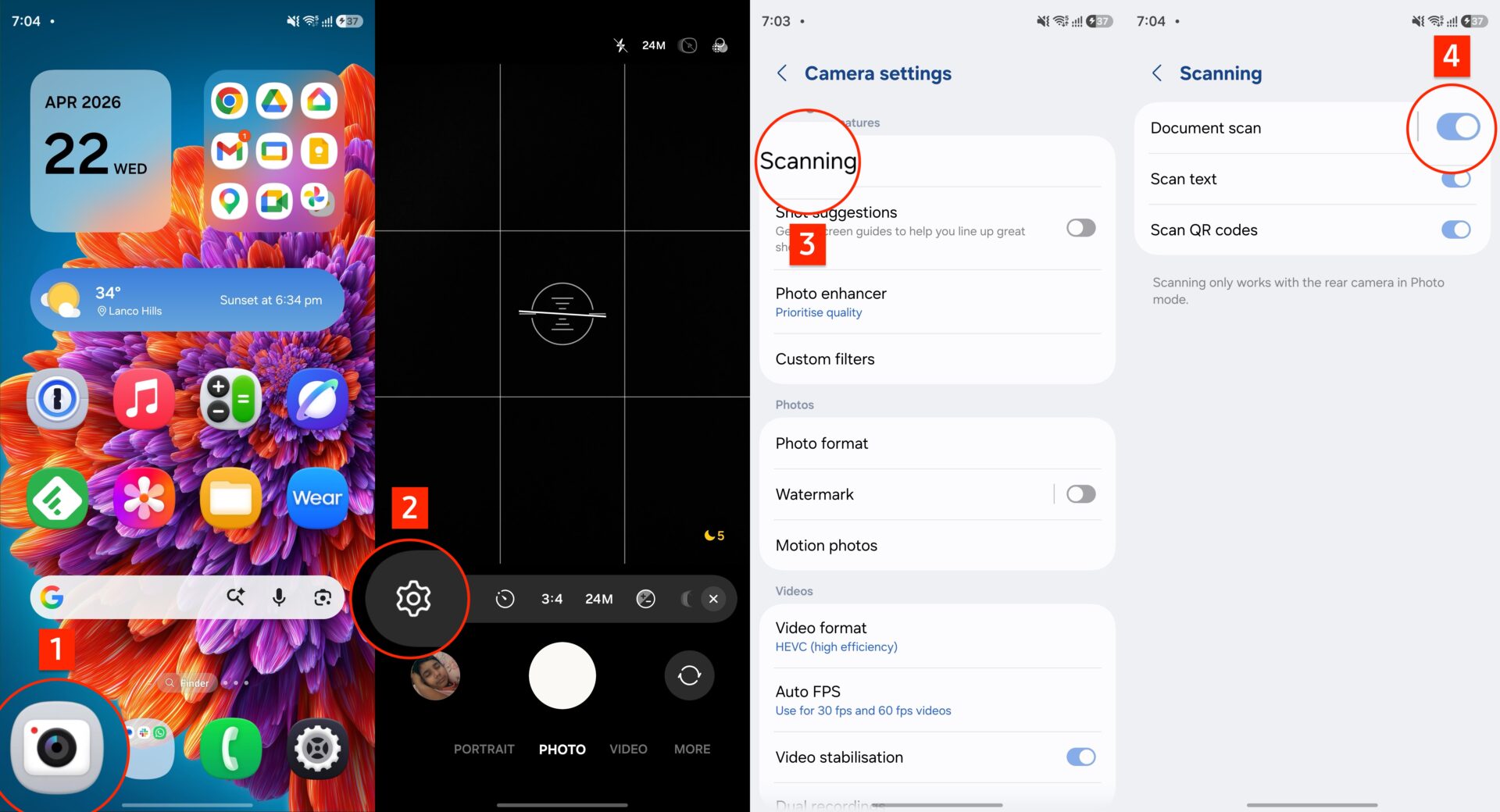
- Open the Camera app and go to Settings by tapping the cog-shaped icon on the screen.
- Tap Scanning and enable the ‘Document Scan‘ toggle.
- Tap Document Scan and enable the ‘Add Document scan to Apps screen‘ toggle.
- While on this screen, set Scan resolution to High.

You will now find the Document Scan shortcut in the phone's stock app launcher. You can also drag the Document Scan icon to the home screen for quicker access. You can also access it by long pressing the Camera app's icon and tapping Document Scan. This is especially useful for users who frequently scan documents, such as students or professionals.
The Document Scanner offers two modes: Auto and Manual. It also includes four filters: Clean, Natural, Grayscale, and Black & White. Additional options let you remove fingers, corner folds, and moiré patterns from scanned documents.

If lighting is insufficient, you can enable the LED flash. It offers four modes: Off, Auto, On, and Always On. These features are enough for most people, and you might not need a third-party app to scan documents using your Galaxy phone's camera.


Post a Comment